
Overview
RBAC in CrewAI AMP enables secure, scalable access management through a combination of organization‑level roles and automation‑level visibility controls.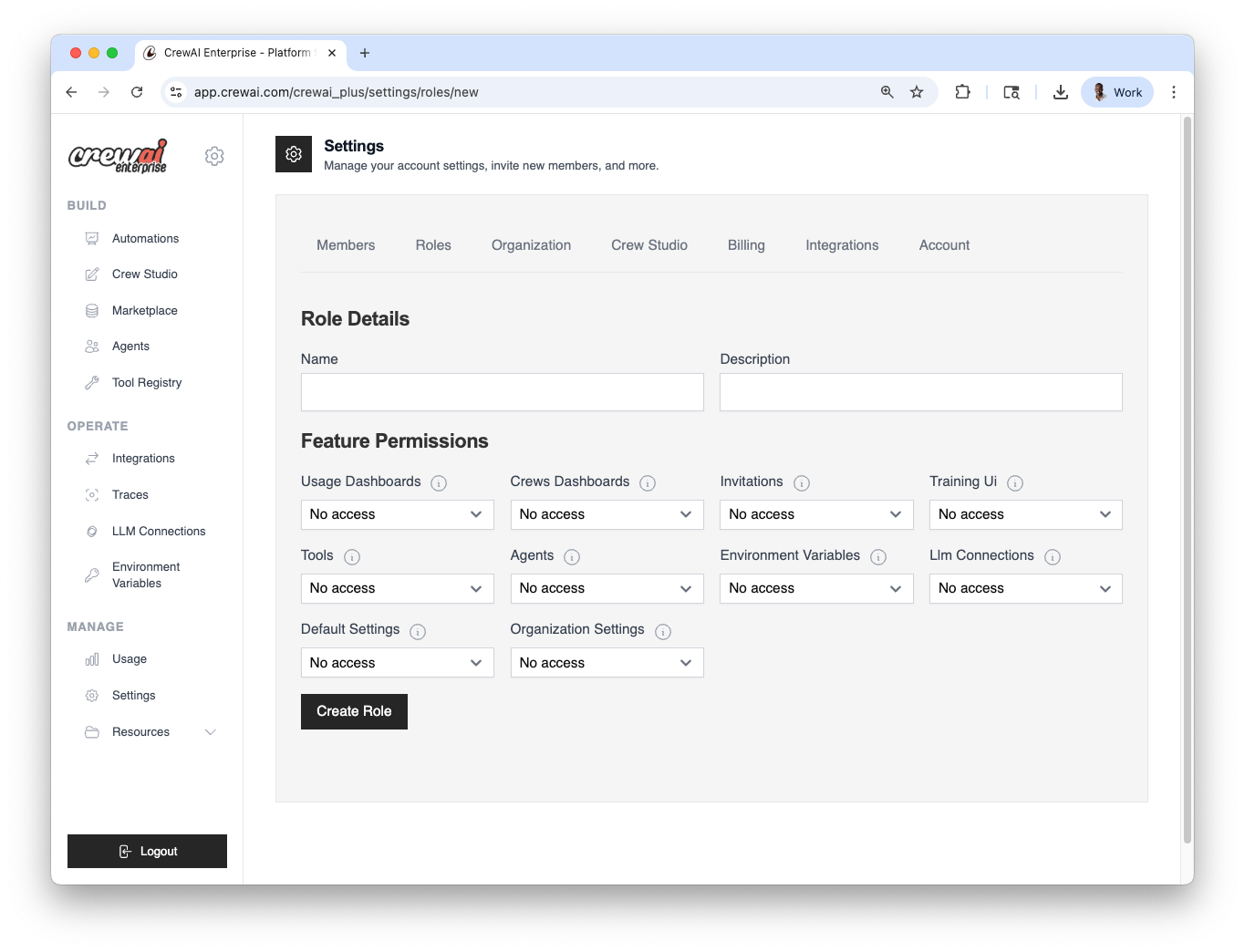
Users and Roles
Each member in your CrewAI workspace is assigned a role, which determines their access across various features. You can:- Use predefined roles (Owner, Member)
- Create custom roles tailored to specific permissions
- Assign roles at any time through the settings panel
1
Open Roles settings
Go to Settings → Roles in CrewAI AMP.
2
Choose a role type
Use a predefined role (Owner, Member) or click
Create role to define a custom one.
3
Assign to members
Select users and assign the role. You can change this anytime.
Configuration summary
Automation‑level Access Control
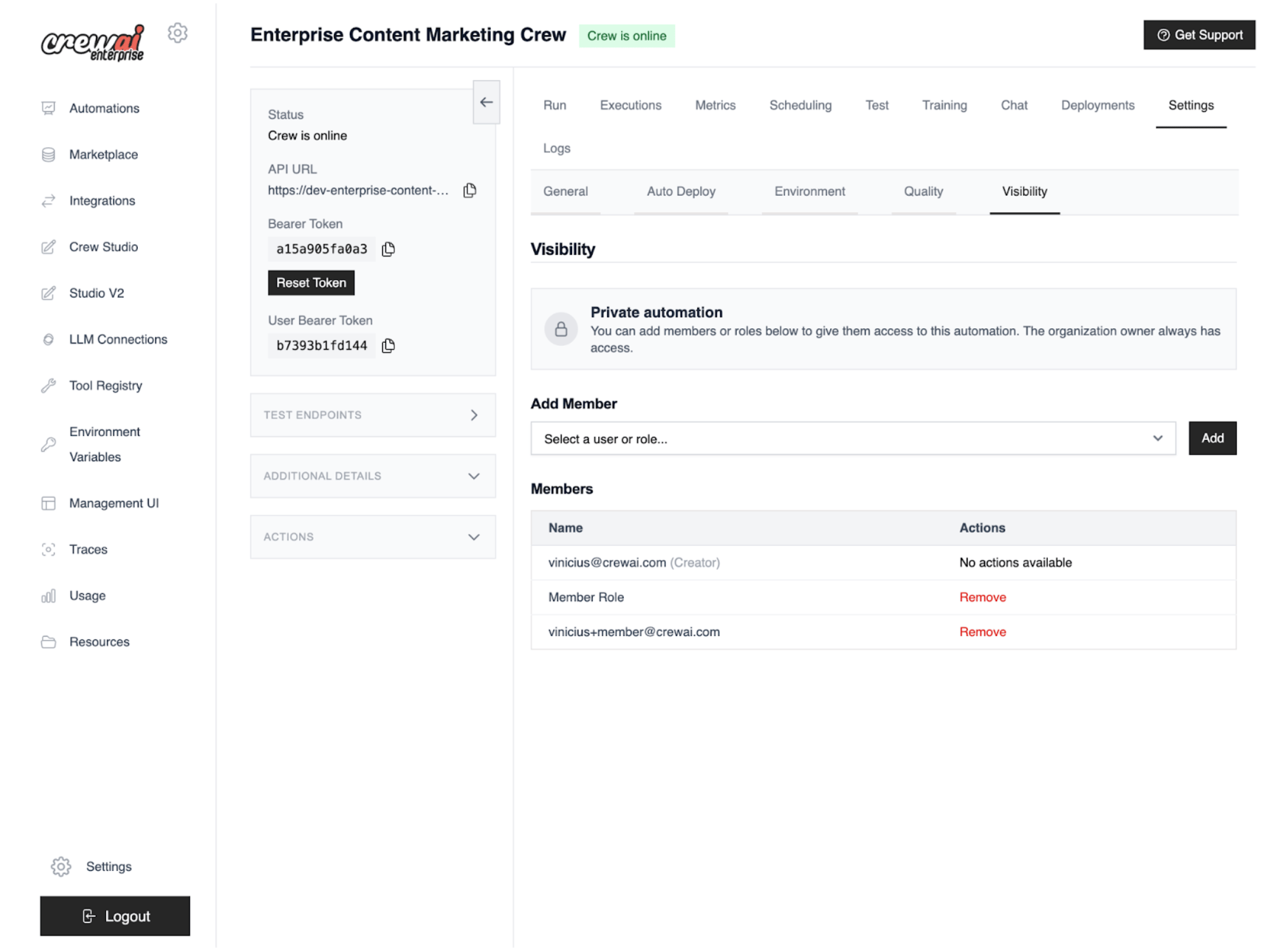
In addition to organization‑wide roles, CrewAI Automations support fine‑grained visibility settings that let you restrict access to specific automations by user or role. This is useful for:- Keeping sensitive or experimental automations private
- Managing visibility across large teams or external collaborators
- Testing automations in isolated contexts
- View the deployment
- Run it or interact with its API
- Access its logs, metrics, and settings
1
Open Visibility tab
Navigate to Automation → Settings → Visibility.
2
Set visibility
Choose Private to restrict access. The organization owner always
retains access.
3
Whitelist access
Add specific users and roles allowed to view, run, and access
logs/metrics/settings.
4
Save and verify
Save changes, then confirm that non‑whitelisted users cannot view or run the
automation.
Private visibility: access outcomes
Need Help?
Contact our support team for assistance with RBAC questions.